From screenshot
to reminder
Press Ctrl+PrtScrn in any app, drag a box over the message, and Capter creates the task and reminds you before it's due.
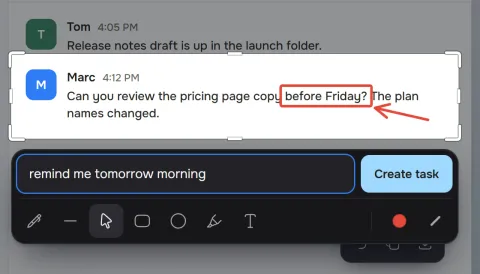
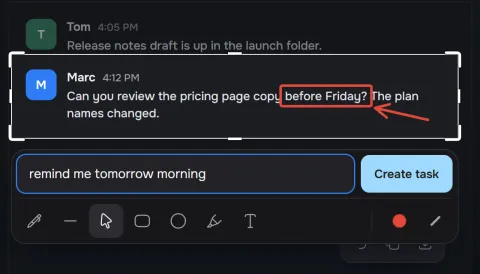
Draw a box around it
A Slack message, an email, a Jira issue or anything else on screen, in any app and on any monitor.
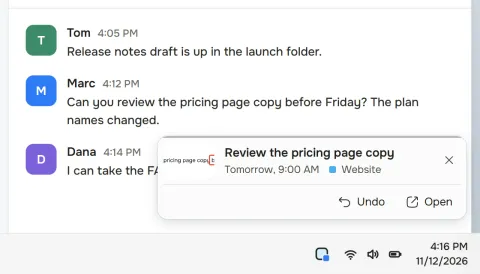
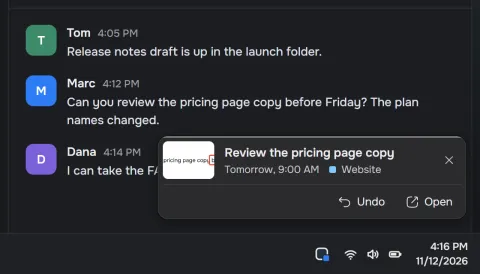
Capter writes the task
It takes the request, who asked and the deadline from the screenshot. You can type a note first, like "remind me Friday".

You get reminded
A Windows notification 5 minutes before the deadline, with Snooze and Mark done on it.
Install Capter
You don't need an admin password. Capter runs in the system tray and starts with Windows.
- 1
Open the Microsoft Store
Use the button at the top of this page to open Capter's Microsoft Store listing, then click Get. The Store installs it.
- 2
Run the setup
Capter opens a short setup: try a capture, see your shortcut, and check what the app uses on your PC.
- 3
Sign in and capture
Pick Continue in browser to sign in. Then press Ctrl+PrtScrn in any app and drag a box over what you need to remember.
Windows questions
What's the minimum Windows version?
Windows 10 version 2004 (build 19041) or newer, including Windows 11. Capter is a 64-bit (x64) app.
Does it work on Windows 11 on ARM?
It runs under Windows 11's x64 emulation on ARM laptops such as Surface and Snapdragon X machines, like most desktop apps. The web app runs on them without emulation.
Will SmartScreen warn me when I install it?
No. Capter installs from the Microsoft Store, which checks the app before it lists it, so you won't see a SmartScreen prompt or an "unrecognized app" warning.
How does Capter update?
Through the Microsoft Store, which installs new versions for you.
Does it sit in the tray or on the taskbar?
The system tray. Capter doesn't open a window when it starts. The tray menu has Capture screen, Quick add (while it is on), Open dashboard, Settings, your account with Sign out, and Quit Capter.
Do I need admin rights to install?
No. Capter installs for your user from the Microsoft Store, so a standard account can install and update it.