From screenshot
to reminder
Press ⌘ + ` in any app, drag a box over the message, and Capter creates the task and reminds you before it's due.
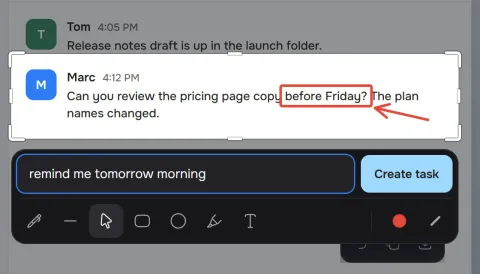
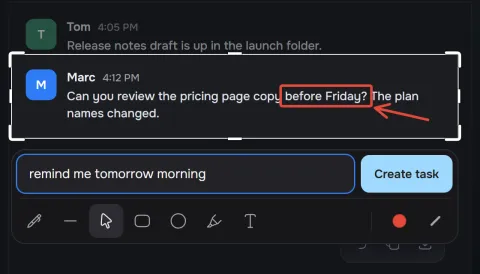
Draw a box around it
A Slack message, an email, a Jira issue or anything else on screen, in any app and on any monitor.
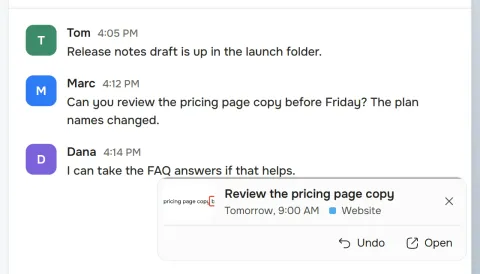
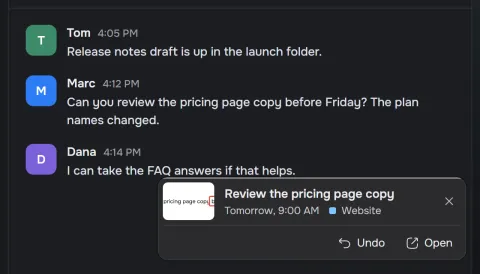
Capter writes the task
It takes the request, who asked and the deadline from the screenshot. You can type a note first, like "remind me Friday".

You get reminded
A Mac notification 5 minutes before the deadline, with Snooze and Mark done on it.
Install Capter
Capter runs in the menu bar.
- 1
Download Capter
Use the button at the top of this page. Your Mac saves the Capter disk image to Downloads.
- 2
Drag it to Applications
Open the disk image and drag Capter onto the Applications folder.
- 3
Open Capter
Open it from Applications. macOS asks once if you want to open an app from the internet: click Open. Then allow Screen Recording when Capter asks.
- 4
Sign in and capture
Pick Continue in browser to sign in. Then press ⌘ + ` (⌘ + § on ISO keyboards) in any app and drag a box over what you need to remember.
Mac questions
Does it run natively on Apple Silicon?
Yes. One app runs natively on Apple Silicon and on Intel Macs.
What's the minimum macOS version?
macOS 14 Sonoma or newer.
Will it ask for screen recording permission?
Yes, during setup. Click Allow next to Screen Recording (it's under System Settings, Privacy & Security), then Relaunch. Capter only reads the screen while you capture and keeps only the box you draw from the screen.
Is the Mac app safe to install?
Yes. Capter is signed with our Apple Developer ID and notarized by Apple, which checks every version for malware before we release it. The first time you open it, macOS asks whether you want to open an app you downloaded, and you won't see an "unidentified developer" block. The app also runs in Apple's sandbox.
Does it live in the menu bar or the Dock?
The menu bar. Capter doesn't take a Dock slot or open a window when it starts. The menu has Capture screen, Quick add (while it is on), Open dashboard, Settings, your account with Sign out, and Quit Capter.
How does Capter update?
Capter checks for updates in the background and installs them when you next quit or restart it, or while your Mac is idle. Your settings, your sign-in and the Screen Recording permission carry over.
I got Capter from the Mac App Store. What now?
That copy keeps working, but it won't get new versions. To move over, let any captures waiting offline send first, then download Capter here and drag it over the old copy. Capter starts fresh, so you'll sign in, set it up again and allow Screen Recording once more.