How it works
- 1
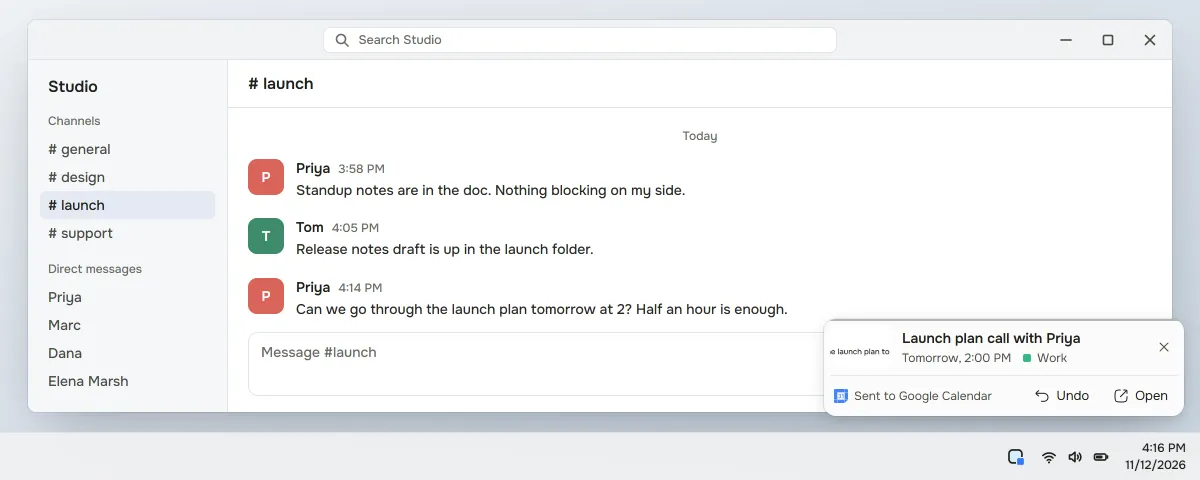
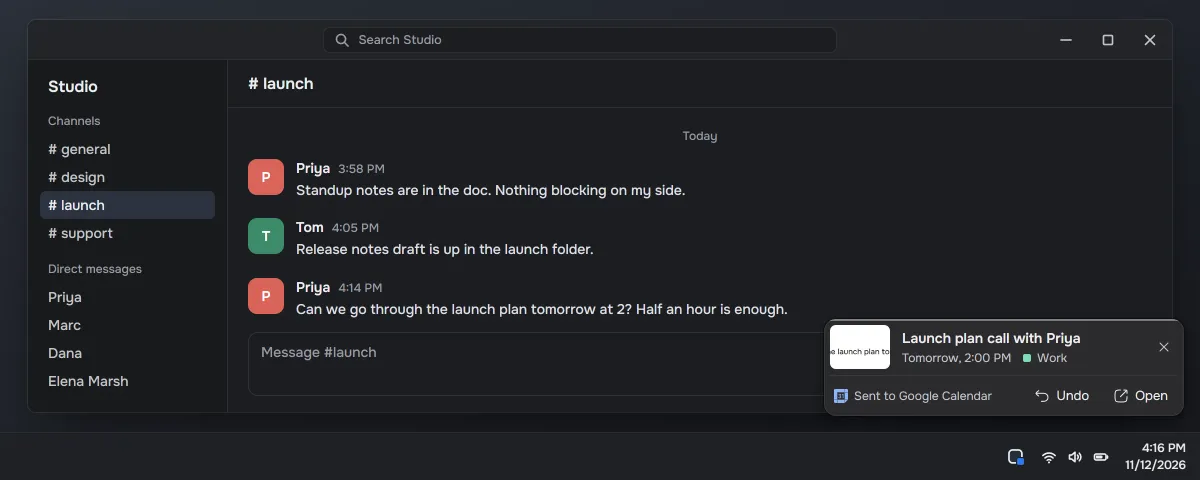
Screenshot the message.
- 2
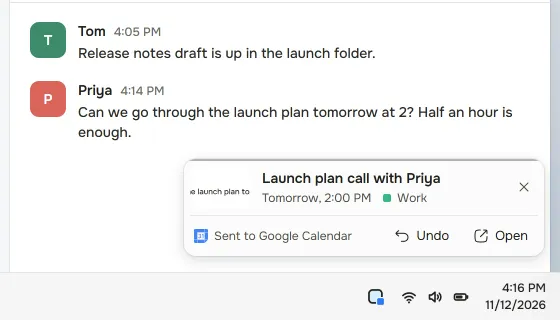
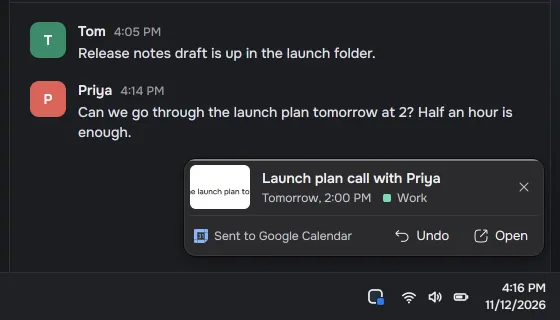
Capter writes the task and reads the date and time.
- 3
Send it, or turn on automatic sending, and the event appears on your calendar. Finishing the task removes it.
Related pages
Questions
Can I send a Slack screenshot to Google Calendar?
Yes, when the task has a deadline. Screenshot the Slack message, then send the task or turn on automatic sending, and Capter adds a 30-minute event at the deadline to your Google Calendar. A task without a deadline doesn't go to your calendar.
Can I turn an email with a date into a Google Calendar event?
Yes. Screenshot the part of the email with the request and the date. Capter writes the task and, when there is a deadline, can put a 30-minute event on your Google Calendar at that time, with a link back to the task in Capter.
What does Capter send to Google Calendar?
A 30-minute event on your primary calendar at the task's deadline, with the task's title and a link back to the task in Capter. Edits you make in Capter later reach the event too, and finishing the task removes the event.
Does it work from the Windows and Mac apps?
Yes. Tasks with a deadline that you capture in the Windows and Mac apps can go to Google Calendar too. You connect Google Calendar once, in Capter on the web. Turn on automatic sending for Google Calendar in Capter's settings, or send each task with one click.